
Copy Paper & Toner
For toner replacements please see the UA Printing website and scroll down to Order Copier Toner located here https://printing.ua.edu/
For copy paper please submit a request to support@eng.ua.edu
Faculty/staff Copiers
Copiers for CoE faculty and staff use are located in most buildings supported by COE. Copy room locations are
- Cyber – 3rd floor, each wing
- HM Comer – 2039, 2059, 2068 (advising), 3015 (Dean’s office), 3046 (depts)
- Hardaway – 225 and 270
- NERC 1027, 2026, 3029
- Paty 162 (currently off-line)
- SEC – 3436 (mail room)
- SERC – 2011, 2038, 3020, 3028, 3071
Note: Most copiers require a department ID and PIN. (check with your department secretary for this)
Windows – Installing Network Printers using Printercloud
Steps 1-3 are for only those that do not have the printer client installed on their device.
- Download the box file here https://alabama.box.com/s/m7dc1ircf816eff4qsj28470l65vu2l6
- Unzip the folder and run the PrinterInstallerClient.msi as an administrator
- Once that finishes run the SaaS_PrinterInstallerClient.bat as an administrator (leave it alone until the black box closes itself)
- Next go to https://bama.printercloud.com/ and install the web extension (be sure to enable it after)
- Go back to https://bama.printercloud.com/ and refresh the page
- Next find the building you need on the left hand side and then select the copier you would like to install
If you are trying to print from a laptop then you need to be connected to the VPN or hardwired. VPN link
Setting Department ID and PIN on copiers (Windows 11 instructions)
- You will need to retrieve your ID and PIN from your department administrative assistant.
- Open Printer & Scanners (subset of Bluetooth & Devices in the Settings menu).
- Select your printer from the list of devices.
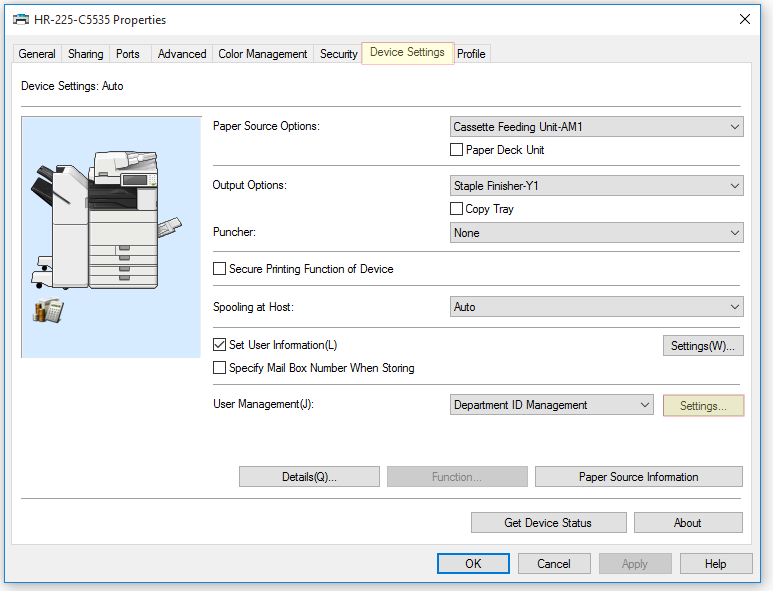
- Select Printer Properties. This will open a window with several tabs.
- Click the Device Settings tab.
- In the User Management area, select “Settings” located beside the Department ID Management drop down. Note: this menu has other options like Off and User Authentication so ensure it is set to Department ID Management
- Enable/Allow PIN
- Enter Department ID and PIN then click verify
- If you do not want the printer ID window to automatically open and require confirmation to print upon printing, de-select “Confirm Department ID/PIN When Printing” toggle.
- Press OK.
Mac – Installing Network Printers using Printercloud
Macs are known to have issues with the Canon copiers, there is nothing we can do to make it work if it does not work.
- Open terminal
- Type sudo -i and press enter
- Type in your laptop password (it will not show the characters when you type)
- Copy and paste the following script – https://alabama.box.com/s/e4mql6n7af56r043fvwawq7u2zmrkm93
- Wait for the command to finish, it will do a few different things
- Once finished go to https://bama.printercloud.com/ and it should populate the printer list
If you are trying to print from a laptop then you need to be connected to the VPN or hardwired. VPN link
Setting Department ID and PIN on copiers (Mac OS)
- You will need to get your ID and PIN from your department secretary.
- Open System Preferences and click on Print & Scan
- Double-click on the copier to be configured
- Click on Settings, Utility, and open the Printer Utility
- Change the access to Department ID Management
- Check Department ID Management, enter your ID and PIN
- Click the printer information box, then close the Window that opens
- The greyed out verify button should now be clickable, click it and it should say printer information is correct
- Click save and try to print
Users can request printer IP addresses by emailing support@eng.ua.edu
The Debian driver package for most Canon copiers can be downloaded using this link: https://download.eng.ua.edu/linux-UFRII-drv-v370-uken-03.tar.gz
Linux
For Linux you will need to add the copier by the IP address. A list of all Engineering copier locations and IP addresses can be found here https://alabama.box.com/s/r6w5k0sm5xgk9hxdw2lcjexgx4v9fd83
Ubuntu install instructions: https://alabama.box.com/s/gz2u9d71u3djpxszl2rp4vt77hblx3xm